How DNS Resolution Works
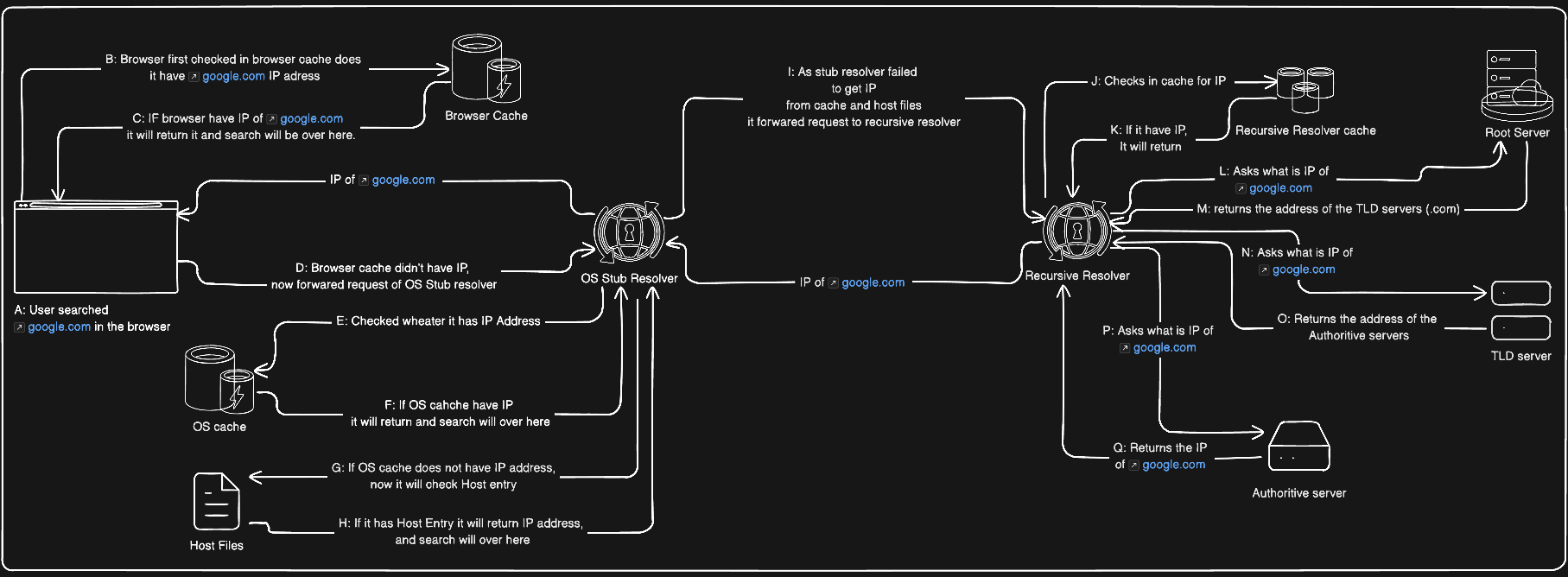
When we search something in a browser, it feels almost magical. You type google.com, press Enter, and within seconds the website appears. Simple, right? But behind this simplicity lies a complex, highly optimized system working silently every time you open a website. Understanding how this works can completely change how you look at the internet.
That system is called DNS the Domain Name System
What is DNS?
At a high level, DNS does one simple job: It translates a human-friendly domain name into a machine-friendly IP address.
For example:
google.com → 142.250.195.46
Computers do not understand domain names. They communicate only using IP addresses. DNS acts as the translator that makes the internet usable for humans. However, this translation is not as straightforward as it sounds. Let’s walk through the full internal flow step by step.
Step 1: Browser DNS Cache
When you type google.com into your browser, the browser first checks its own DNS cache.
“Have I already resolved this domain recently?”
“Is the cached entry still valid (TTL not expired)?”
If the answer is yes, the browser immediately uses that IP address and skips the rest of the DNS process. If not, the browser asks the operating system for help.
Step 2: OS Stub Resolver
Every operating system contains a small DNS component called a stub resolver. Its job is very limited and very important:
It receives DNS questions from applications (like browsers)
It checks local sources
If needed, it forwards the request to a recursive resolver
Before contacting the network, the stub resolver checks two things.
1. OS DNS Cache
If the domain was resolved earlier and the TTL has not expired, the IP is returned immediately.
2. Hosts File
The stub resolver checks the hosts file:
Linux / macOS:
/etc/hostsWindows:
C:\Windows\System32\drivers\etc\hosts
If it finds an entry like:
127.0.0.1 google.com
DNS resolution stops right there. This allows manual overrides, blocking, and local testing. If none of these checks succeed, the stub resolver forwards the query to a recursive resolver.
Step 3: Recursive Resolver
The recursive resolver is the component that does all the heavy lifting. In most cases, it does not live on your local machine. It usually runs on:
Your ISP’s DNS servers
Public DNS providers (Google DNS
8.8.8.8, Cloudflare1.1.1.1)Corporate or enterprise DNS servers
Cloud environments (AWS, GCP, Azure)
Sometimes, in advanced setups, your own machine can act as a recursive resolver, but that is not the default.
How does your machine know which resolver to use?
The resolver address is learned from network configuration, most commonly via DHCP, and can also be:
Manually configured
Changed by a VPN
Enforced by corporate policies
The stub resolver sends one simple question: “What is the IP address of google.com?” From here on, the recursive resolver takes full control.
Step 4: Root DNS Servers
If the recursive resolver does not already have the answer cached, it starts resolution from the top of the DNS hierarchy. It first contacts a root DNS server. Root servers do not know anything about google.com. They only know which servers manage top-level domains (TLDs) like .com, .org, .in, etc.
Important clarification about “13 root servers”
You’ll often hear that there are 13 root servers. This does not mean 13 physical machines. There are 13 root server identities, named:
A.root-servers.net
B.root-servers.net
...
M.root-servers.net
This limit exists because early DNS responses had to fit into a single 512-byte UDP packet, and only 13 name server entries could fit reliably. Each root server identity is actually a global anycast cluster with hundreds of physical servers distributed worldwide.
So basically anycast means the same IP address exist in many location and internet routing (BGP) send your request to the nearest location. So when you query (A.root-server.net 198.31.3.1) you are not hitting “the A server in one data centre” but you are hitting the closet A-root instance near you. This design is why root DNS has never gone down globally.
Step 5: Root Server Response
When asked about google.com, a root server responds with:
NS records for the
.comTLDGlue records (IP addresses of those TLD name servers)
Example:
Authority Section:
com.  NS  a.gtld-servers.net
com.  NS  b.gtld-servers.net

Additional Section:
a.gtld-servers.net → 192.5.6.30
b.gtld-servers.net → 192.33.14.30
NS records tell who to ask next.
Glue records provide IP addresses so the resolver can actually reach those servers without circular lookups.
Step 6: TLD (.com) Server
The recursive resolver picks one .com TLD server and asks again: “Who owns google.com?”
The TLD server does not know Google’s IP address. Instead, it replies with the authoritative name servers for google.com.
Example:
google.com NS ns1.google.com
google.com NS ns2.google.com
ns3.google.com
ns4.google.com
So here you might be get confused with words like NS and Glue record basically NS record tells which DNS server are responsible for a domain or zone (who to ask next).it contains server names not IPs. And glue record provides the IP addresses of those name servers so resolvers can reach them immediately and avoid circular lookups.
Step 7: Authoritative DNS Servers
Authoritative DNS servers are the source of truth for a domain. They are owned and controlled by the domain owner or the DNS provider the owner chooses (Cloudflare, Route 53, GoDaddy, Google DNS, etc.). If you own example.com and configure DNS records at a provider, that provider’s servers become authoritative for your domain.
These servers store actual DNS records such as:
A / AAAA (IP addresses)
MX (mail servers)
CNAME (aliases)
TXT (verification and security records)
Step 8: Final Answer
The recursive resolver now queries one authoritative server: “What is the IP address of google.com?”
The authoritative server replies with the final answer:
google.com A 142.250.195.46
TTL = 300
The resolver:
Caches the response (respecting TTL)
Sends the IP back to your OS
Your browser then uses that IP to establish a network connection
DNS resolution is now complete.
What looks like a simple browser search is actually a carefully designed, highly distributed system involving caching, delegation, redundancy, and global routing. DNS is one of the most critical pieces of internet infrastructure fast, reliable, and invisible when it works correctly. The next time a website loads instantly, you’ll know how much coordination happened behind the scenes to make that possible.
Understanding the dig Command in DNS
Now so far we understood the complete flow, but now let’s understand the complete flow with The dig command (Domain Information Groper). It is a powerful DNS debugging and inspection tool. It allows you to directly query DNS servers and see exactly what they return, without relying on browser or OS abstractions.
In simple words: dig lets you ask DNS servers questions and shows you the raw answers. Unlike browsers, dig:
Bypasses browser cache
Can bypass OS cache
Can query specific DNS servers
Shows authoritative vs non-authoritative answers clearly
When is dig used?
You use dig when you want to:
Debug DNS resolution problems
Understand DNS delegation (root → TLD → authoritative)
Verify NS, A, MX, TXT records
Check TTL values
Trace the full DNS resolution path
Confirm DNS changes after updates
1. Understanding dig . NS (Root Name Servers)
Command:
dig . NS
What this means
.represents the DNS root zoneNSasks for Name Server records
What it returns
This command returns the list of root name servers:
harshalchauhan@192 mamo technolab workspace % dig . NS

; <<>> DiG 9.10.6 <<>> . NS
;; global options: +cmd
;; Got answer:
;; ->>HEADER<<- opcode: QUERY, status: NOERROR, id: 12652
;; flags: qr rd ra ad; QUERY: 1, ANSWER: 13, AUTHORITY: 0, ADDITIONAL: 1

;; OPT PSEUDOSECTION:
; EDNS: version: 0, flags:; udp: 512
;; QUESTION SECTION:
;.                IN    NS

;; ANSWER SECTION:
.            82136    IN    NS    c.root-servers.net.
.            82136    IN    NS    b.root-servers.net.
.            82136    IN    NS    e.root-servers.net.
.            82136    IN    NS    h.root-servers.net.
.            82136    IN    NS    a.root-servers.net.
.            82136    IN    NS    k.root-servers.net.
.            82136    IN    NS    f.root-servers.net.
.            82136    IN    NS    l.root-servers.net.
.            82136    IN    NS    m.root-servers.net.
.            82136    IN    NS    j.root-servers.net.
.            82136    IN    NS    i.root-servers.net.
.            82136    IN    NS    d.root-servers.net.
.            82136    IN    NS    g.root-servers.net.

;; Query time: 5 msec
;; SERVER: fe80::1%15#53(fe80::1%15)
;; WHEN: Mon Jan 19 23:30:47 IST 2026
;; MSG SIZE  rcvd: 239
What you learn from this
There are 13 root server identities
These servers are authoritative for the root zone (
.)They are the starting point of the DNS hierarchy
Important note: These are not website servers. They only know where TLDs live.
2. Understanding dig com NS (TLD Name Servers)
Command:
dig com NS
What this means
- You are asking: Who manages the
.comtop-level domain?
What it returns
A list of .com TLD name servers, for example:
harshalchauhan@192 mamo technolab workspace % dig com NS

; <<>> DiG 9.10.6 <<>> com NS
;; global options: +cmd
;; Got answer:
;; ->>HEADER<<- opcode: QUERY, status: NOERROR, id: 65389
;; flags: qr rd ra ad; QUERY: 1, ANSWER: 13, AUTHORITY: 0, ADDITIONAL: 1

;; OPT PSEUDOSECTION:
; EDNS: version: 0, flags:; udp: 512
;; QUESTION SECTION:
;com.                IN    NS

;; ANSWER SECTION:
com.            66100    IN    NS    c.gtld-servers.net.
com.            66100    IN    NS    i.gtld-servers.net.
com.            66100    IN    NS    h.gtld-servers.net.
com.            66100    IN    NS    d.gtld-servers.net.
com.            66100    IN    NS    a.gtld-servers.net.
com.            66100    IN    NS    b.gtld-servers.net.
com.            66100    IN    NS    g.gtld-servers.net.
com.            66100    IN    NS    j.gtld-servers.net.
com.            66100    IN    NS    f.gtld-servers.net.
com.            66100    IN    NS    m.gtld-servers.net.
com.            66100    IN    NS    k.gtld-servers.net.
com.            66100    IN    NS    e.gtld-servers.net.
com.            66100    IN    NS    l.gtld-servers.net.

;; Query time: 8 msec
;; SERVER: fe80::1%15#53(fe80::1%15)
;; WHEN: Mon Jan 19 23:32:05 IST 2026
;; MSG SIZE  rcvd: 256
What you learn from this
.comis managed by its own authoritative TLD serversThese servers are responsible for delegating domains like
google.comRoot servers point to these TLD servers
This confirms the hierarchy:
Root (.) → .com TLD servers
3. Understanding dig google.com NS (Authoritative Name Servers)
Command:
dig google.com NS
What this means
- You are asking: Which servers are authoritative for
google.com?
What it returns
A list like:
harshalchauhan@192 mamo technolab workspace % dig google.com NS

; <<>> DiG 9.10.6 <<>> google.com NS
;; global options: +cmd
;; Got answer:
;; ->>HEADER<<- opcode: QUERY, status: NOERROR, id: 44661
;; flags: qr rd ra; QUERY: 1, ANSWER: 4, AUTHORITY: 0, ADDITIONAL: 1

;; OPT PSEUDOSECTION:
; EDNS: version: 0, flags:; udp: 512
;; QUESTION SECTION:
;google.com.            IN    NS

;; ANSWER SECTION:
google.com.        67825    IN    NS    ns2.google.com.
google.com.        67825    IN    NS    ns4.google.com.
google.com.        67825    IN    NS    ns3.google.com.
google.com.        67825    IN    NS    ns1.google.com.

;; Query time: 5 msec
;; SERVER: fe80::1%15#53(fe80::1%15)
;; WHEN: Mon Jan 19 23:33:10 IST 2026
;; MSG SIZE  rcvd: 111

harshalchauhan@192 mamo technolab workspace %
What you learn from this
These are Google’s authoritative DNS servers
They are chosen and controlled by Google
They store the actual DNS records for
google.com
This shows delegation from .com → Google.
4. Understanding dig google.com (Actual DNS Resolution)
Command:
dig google.com
What this does
Queries your default recursive resolver
Asks for the A record (IP address) of
google.com
What it returns
You’ll see:
The final IP address (A / AAAA record)
TTL
Which server responded
Whether the answer is authoritative
Example:
harshalchauhan@192 mamo technolab workspace % dig google.com

; <<>> DiG 9.10.6 <<>> google.com
;; global options: +cmd
;; Got answer:
;; ->>HEADER<<- opcode: QUERY, status: NOERROR, id: 12436
;; flags: qr rd ra; QUERY: 1, ANSWER: 1, AUTHORITY: 0, ADDITIONAL: 1

;; OPT PSEUDOSECTION:
; EDNS: version: 0, flags:; udp: 512
;; QUESTION SECTION:
;google.com.            IN    A

;; ANSWER SECTION:
google.com.        87    IN    A    142.251.222.78

;; Query time: 5 msec
;; SERVER: fe80::1%15#53(fe80::1%15)
;; WHEN: Mon Jan 19 23:33:32 IST 2026
;; MSG SIZE  rcvd: 55

harshalchauhan@192 mamo technolab workspace %
What happens internally
Even though you run one command, the resolver internally performs:
Root → .com TLD → google.com authoritative → IP
You don’t see these steps unless you trace them.
The dig command is a DNS inspection tool that lets you directly query DNS servers and understand how name resolution works. dig . NS shows root servers, dig com NS shows TLD servers, dig google.com NS shows authoritative servers, and dig google.com returns the final IP. Using dig +trace, you can observe the complete DNS resolution path from root to authoritative server.